

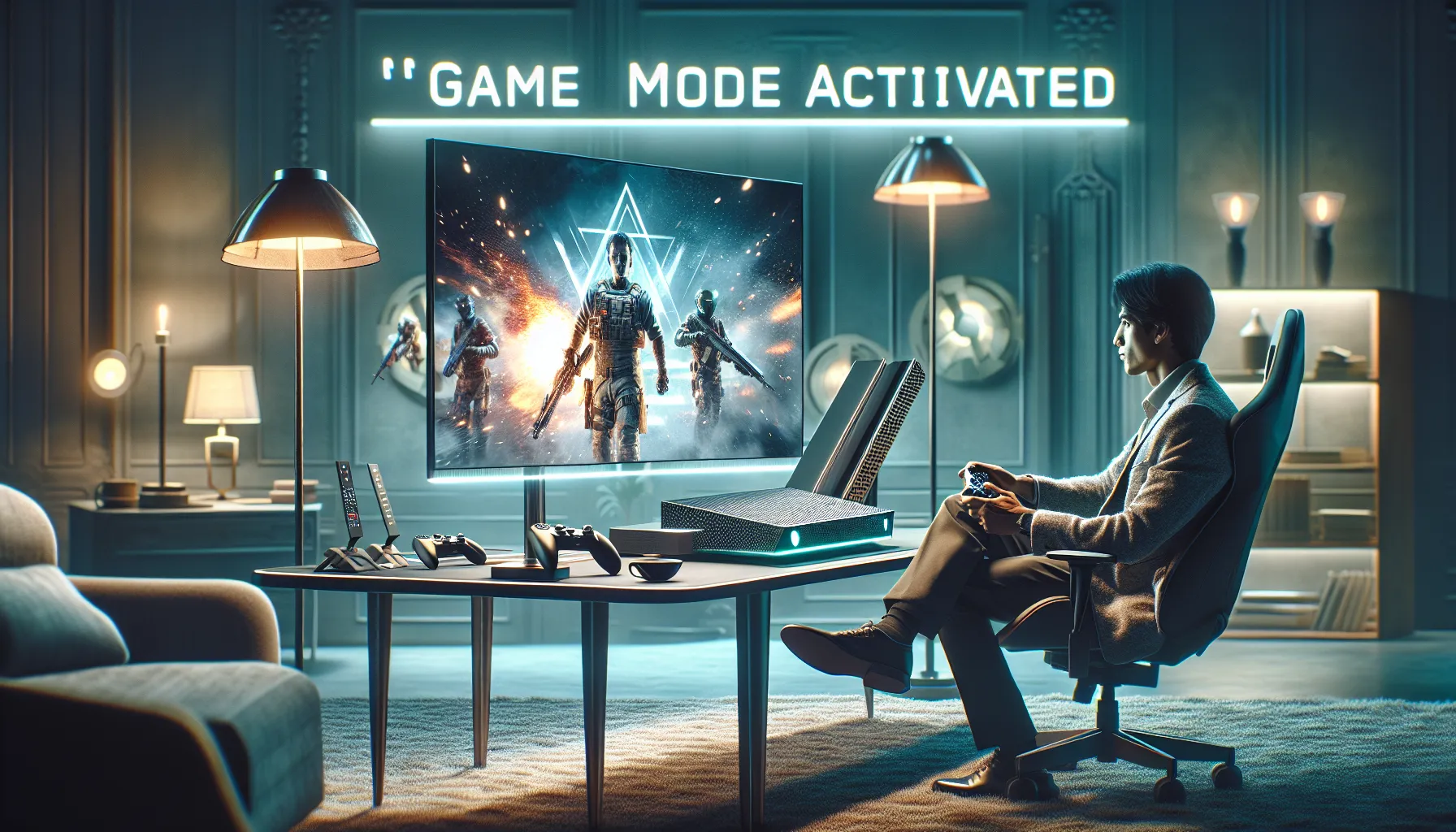

Picture this: You’re sitting on your couch, controller in hand, heart pounding as your favorite game loads. The screen flashes, and suddenly, everything looks sharper, moves faster, and feels more alive. That’s not magic—it’s the game mode turned on by your gaming console. If you’ve ever wondered why your games sometimes look and feel better, or why your TV suddenly asks if you want to switch to “game mode,” you’re in the right place.
What Happens When Game Mode Turns On?
Let’s break it down. When game mode turns on by your gaming console, your TV or monitor changes how it processes images. Normally, TVs add extra effects—like smoothing, sharpening, or color tweaks—to make movies look great. But these effects add delay, called input lag. For gamers, even a split-second delay can mean the difference between victory and defeat.
Game mode strips away those extras. Your TV focuses on speed, not fancy effects. The result? Your button presses register faster, and the action on screen matches your reflexes. If you’ve ever missed a jump or lost a match and blamed your TV, you might not be wrong.
Why Game Mode Matters for Gamers
If you play fast-paced games—think shooters, racing, or fighting games—every millisecond counts. The game mode turned on by your gaming console can shave input lag down from 100 milliseconds to as low as 10-20 milliseconds. That’s the difference between landing a headshot and watching your character flop.
But it’s not just about speed. Game mode can also improve picture clarity. Without extra processing, you see the game as the developers intended. Colors pop, motion looks smoother, and you spot details you might’ve missed before. It’s like cleaning your glasses after a long day—suddenly, everything snaps into focus.
How Does Your Console Trigger Game Mode?
Here’s the part nobody tells you: Modern consoles like PlayStation 5, Xbox Series X, and even Nintendo Switch can send a signal to your TV to turn on game mode automatically. This feature, called Auto Low Latency Mode (ALLM), means you don’t have to fumble through menus every time you want to play.
When you start a game, your console says, “Hey TV, it’s game time.” The TV responds by switching to game mode. When you exit the game, it flips back to movie or standard mode. It’s seamless, and you might not even notice—except for the sudden boost in responsiveness.
Who Needs Game Mode—and Who Doesn’t?
If you’re a competitive gamer, or you play anything that requires quick reflexes, you need the game mode turned on by your gaming console. Even casual players notice the difference, especially in action-heavy titles. But if you only use your console for streaming movies or slow-paced games, you might not care about a few extra milliseconds.
Here’s a quick checklist:
- Competitive multiplayer? Turn on game mode.
- Single-player adventure? Still helps, but less critical.
- Watching Netflix? Game mode can make movies look worse—turn it off.
How to Check If Game Mode Is On
Sometimes, the game mode turned on by your gaming console isn’t obvious. Here’s how to check:
- Start a game on your console.
- Look for a pop-up on your TV—many display “Game Mode On.”
- If not, open your TV’s settings and look for “Picture Mode” or “Game Mode.”
- Some TVs let you assign game mode to specific HDMI ports—make sure your console is plugged into the right one.
If you’re not sure, try toggling game mode on and off while playing. You’ll feel the difference in how quickly your actions appear on screen.
Common Mistakes and How to Fix Them
Here’s a confession: I once played an entire season of FIFA with game mode off. My passes felt sluggish, and I blamed my skills. When I finally switched game mode on, it felt like I’d leveled up overnight. Don’t make my mistake.
Other common issues:
- Game mode looks too dark or washed out? Adjust brightness and contrast in your TV settings. Game mode sometimes disables enhancements that make movies pop.
- Game mode not switching automatically? Make sure your console and TV support ALLM, and update their firmware.
- Still seeing lag? Check your HDMI cable. Use the one that came with your console, or buy a certified high-speed cable.
Advanced Tips: Getting the Most from Game Mode
If you want to squeeze every drop of performance, try these:
- Enable “Variable Refresh Rate” (VRR) if your TV and console support it. This reduces screen tearing and stutter.
- Turn off extra TV features like motion smoothing, noise reduction, or dynamic contrast. These add lag.
- Use the shortest HDMI cable possible. Long, cheap cables can introduce signal delay.
- Keep your console and TV updated. Manufacturers often release updates that improve game mode performance.
Here’s why: Every setting you tweak can shave off a few milliseconds. For hardcore gamers, that’s the edge you need.
What If Your TV Doesn’t Have Game Mode?
If your TV is older, you might not see a “game mode” option. Don’t panic. Try these workarounds:
- Switch to “PC mode” if available. This often reduces input lag.
- Turn off all picture enhancements manually—look for settings like “Noise Reduction,” “Motion Smoothing,” or “Dynamic Contrast.”
- Consider upgrading to a newer TV if you play a lot of games. Even budget models now include game mode.
It’s not just about having the latest gear. It’s about making the most of what you have.
Final Thoughts: The Real Power of Game Mode
The game mode turned on by your gaming console isn’t just a setting—it’s a secret weapon. It gives you faster reactions, clearer visuals, and a more immersive experience. If you’ve ever felt like your skills didn’t match your results, try game mode. You might surprise yourself.
Remember, every gamer’s setup is different. Experiment, tweak, and find what works for you. And if you ever feel lost in the settings menu, just know you’re not alone. We’ve all been there, squinting at tiny icons, hoping for that perfect picture. The next time your console asks to turn on game mode, say yes—and enjoy the difference.